
Bridging is the process in which two web software programs are integrated in some way. The best Joomla extension for bridging with phpBB3 is called Mehdi's phpBB THREE bridge
Bridging is a complicated process, so this tutorial is targeted at intermediate Joomla administrators
This bridge allows you to separately enable visual integration and user integration. It requires PHP 5 to function
You'll need access to phpMyAdmin, an FTP client, and a text editor. You'll also need to have already installed phpBB3
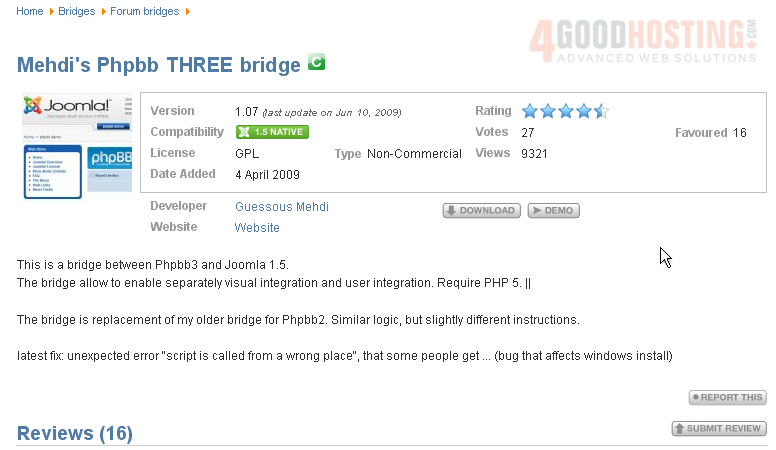
As with all extensions we'll be showing you, start by going to extensions.joomla.org. Then, navigate to the Bridges / Forum bridges category and find the page for Mehdi's PhpBB THREE bridge
1) Click Download
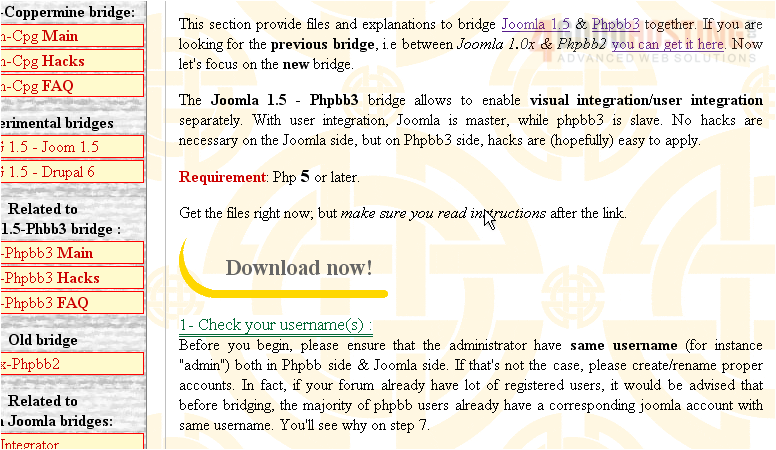
Before we begin, you'll need to ensure that your main administrator accounts in Joomla and phpBB3 have the same name (i.e. admin)
If you have many phpBB3 users, you'll probably also want to ensure that as many users as possible register a new Joomla user account with the identical name before proceeding
If all phpBB3 users do not have a corresponding Joomla account, those users that don't will have to reset their passwords in Joomla
2) Let us begin. Scroll down to the Download now! button
3) Click it
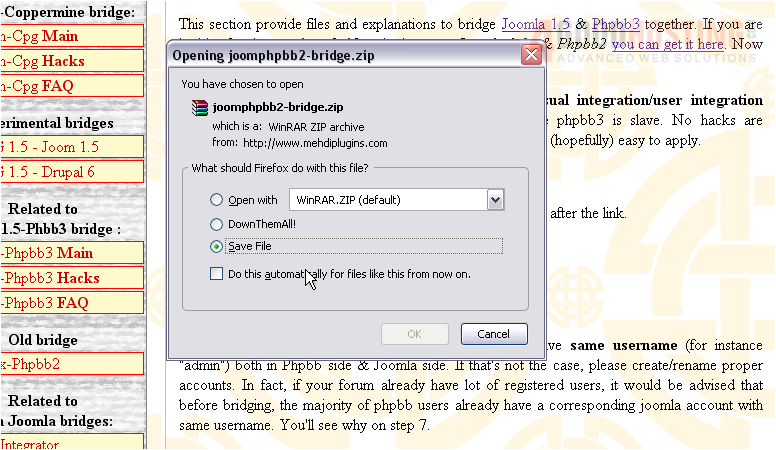
4) Save the file to your computer
5) Locate and extract the archive
If your version of phpBB3 matches the number specified in this folder's name, you're in luck -- you don't have to edit any of phpBB3's files
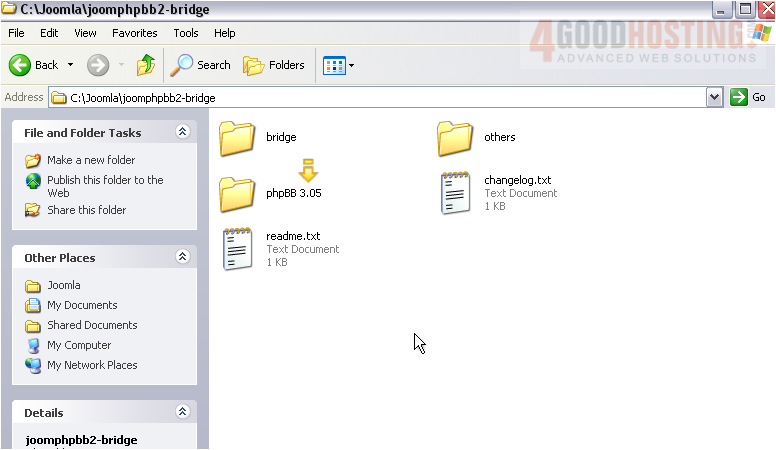
6) Simply go inside this folder and upload all files contained in the hacked folder to your phpBB3 root directory, then do the same with everything in the bridge folder
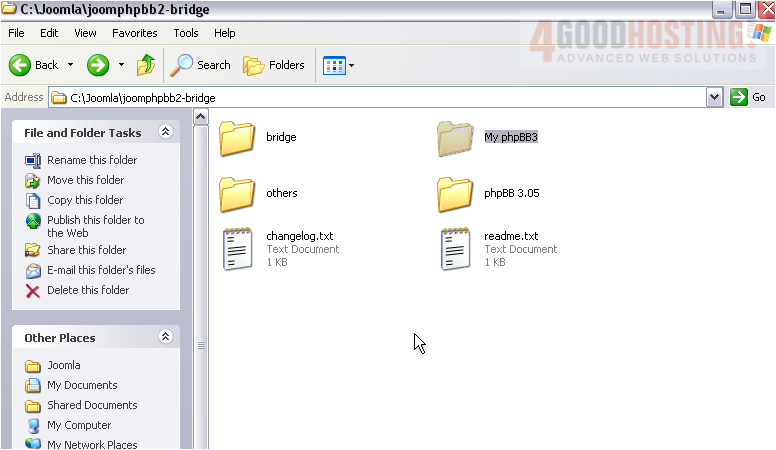
If your version doesn't match, or if you're not sure what your version is, you'll have to edit and rename some files by hand
7) Start by downloading your entire phpBB3 directory to a subfolder here
8) When finished, copy the files quickprocess2.bat and begin2.txt from the others folder to the folder you just created
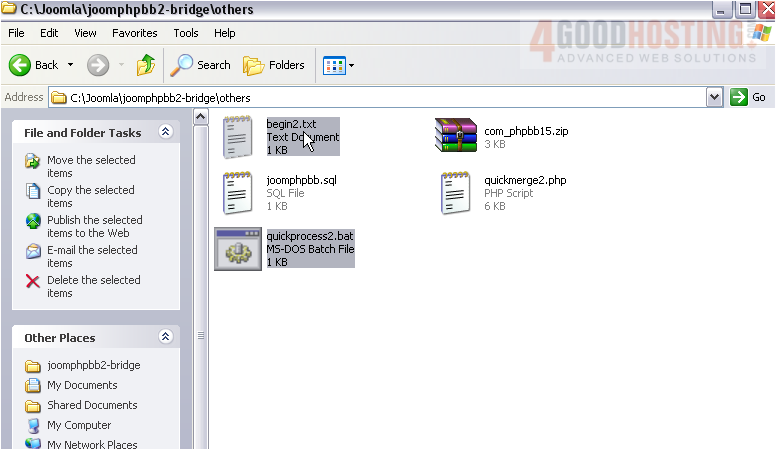
9) Hold down CTRL and select both files
10) Go Up
11) Press CTRL+C to copy
12) Press CTRL+V to paste, then scroll down to find the files
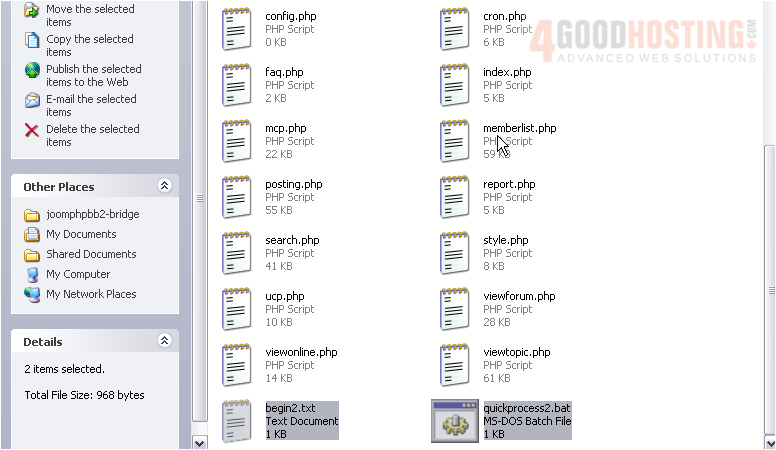
13) Double click the .bat file to run it
14) This command prompt will appear. Press a key to continue
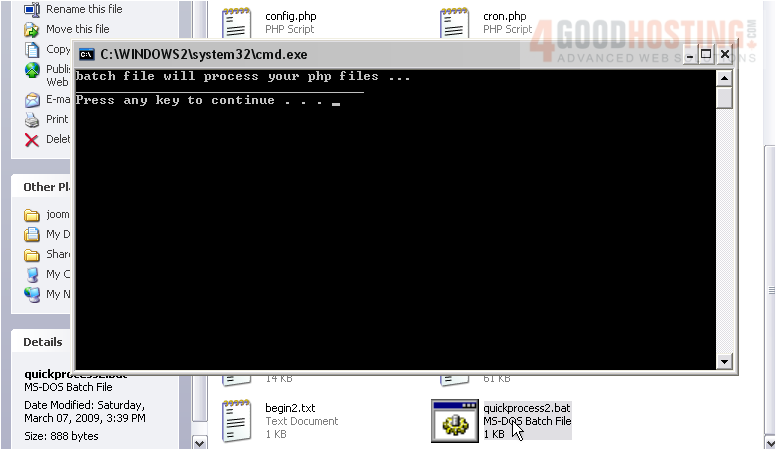
15) Again, press a key
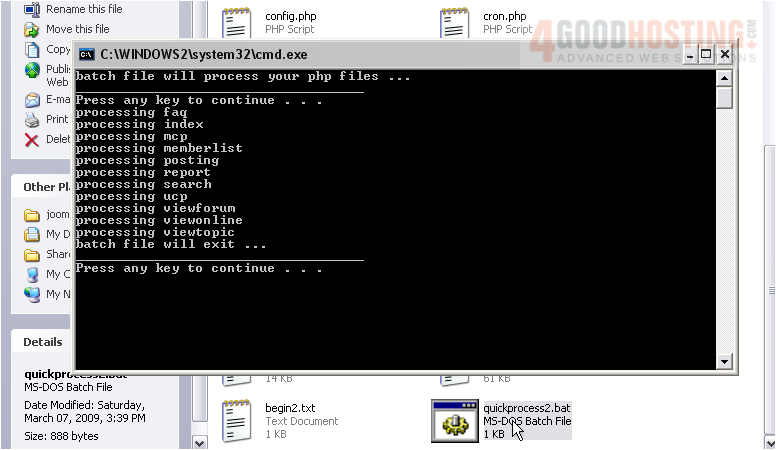
Notice -- many of the file sizes have changed to 1 KB
Scroll down
The original files have been moved down here, with inc_ added in the front
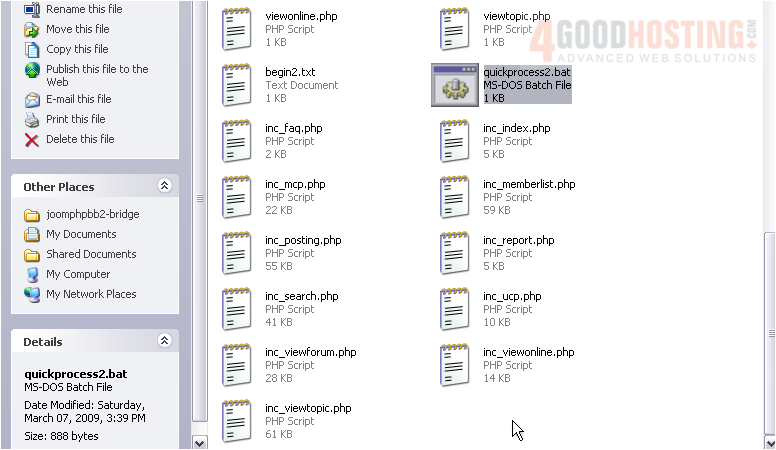
Scroll back up
16) Go inside the adm folder
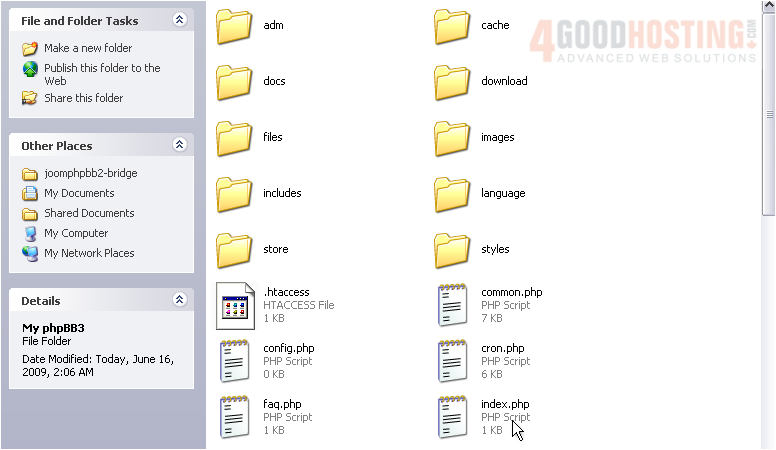
17) Rename index.php in the same manner

18) Now, copy the index.php file that was created in the previous directory to here and open it with your favorite text editor
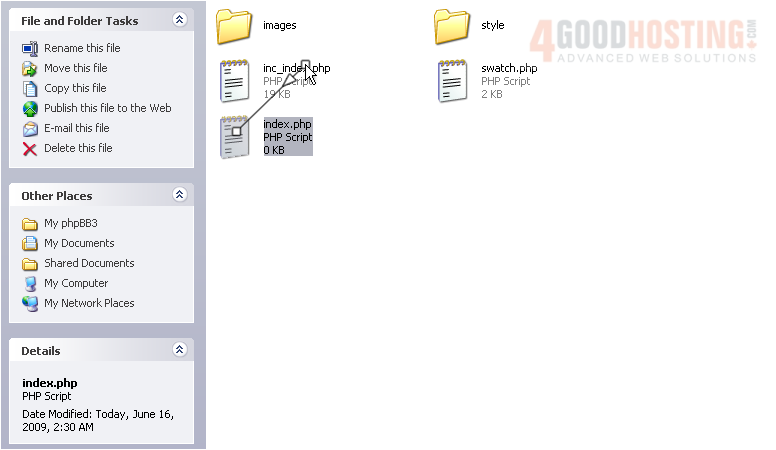
19) Adjust the current folder
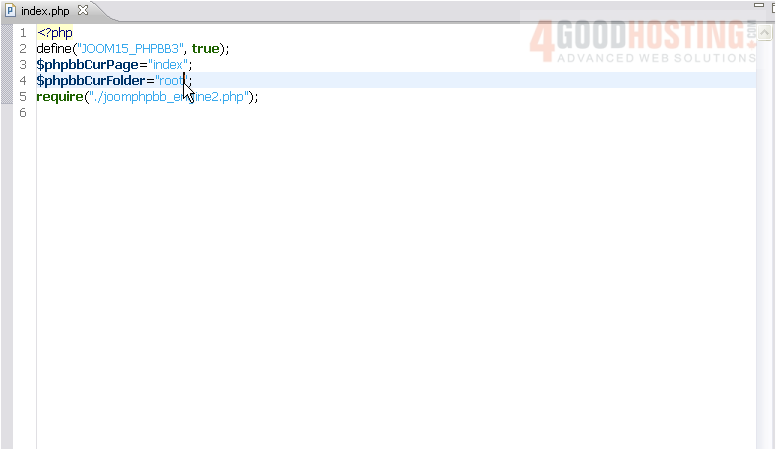
20) Add a period to refer to the previous directory
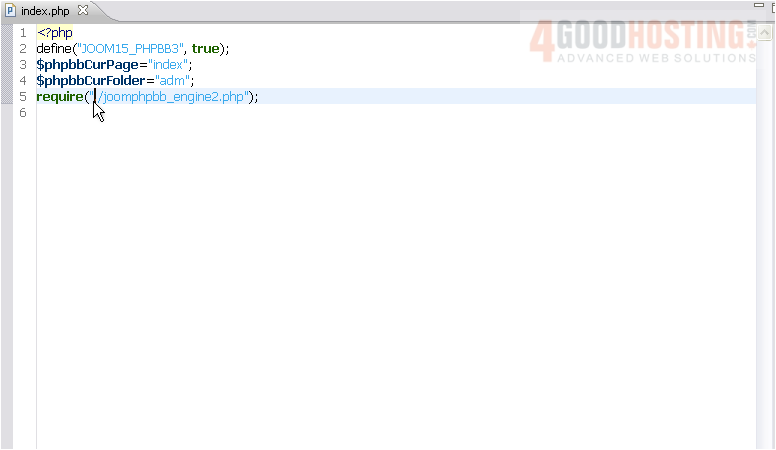
21) Press CTRL+S to save
Return to Windows Explorer
22) Press CTRL+C to copy this file, then go up one directory
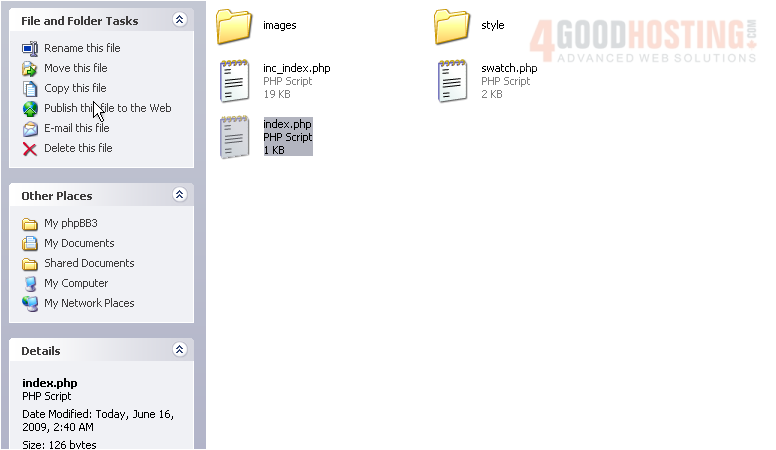
23) Rename file.php as before
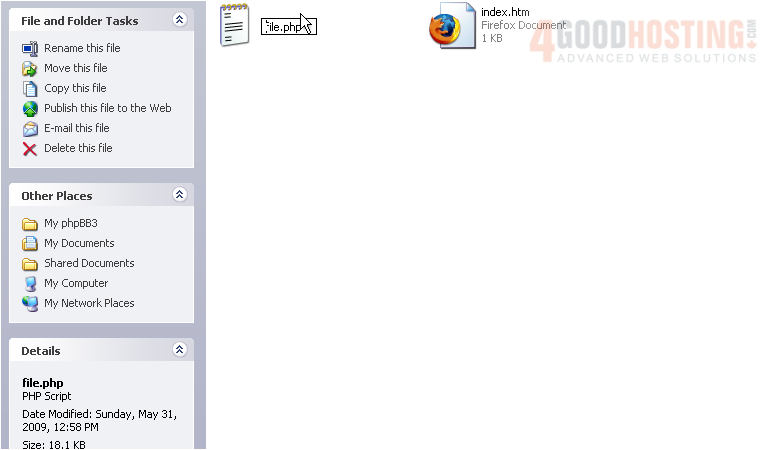
24) Paste the file you copied with CTRL+V
25) Rename this one to file.php
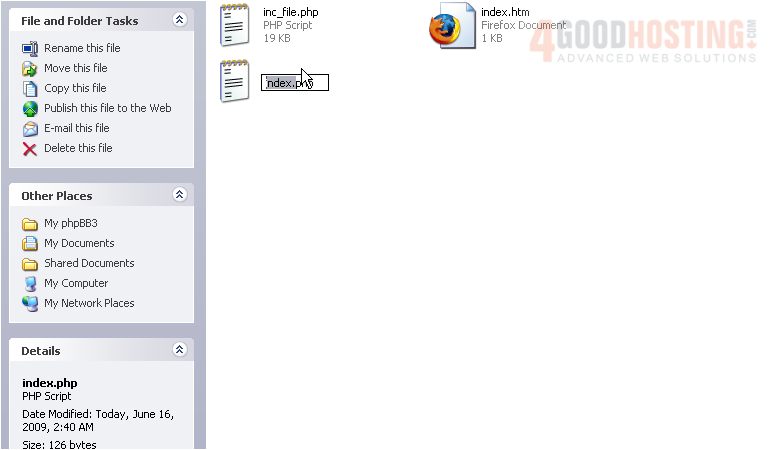
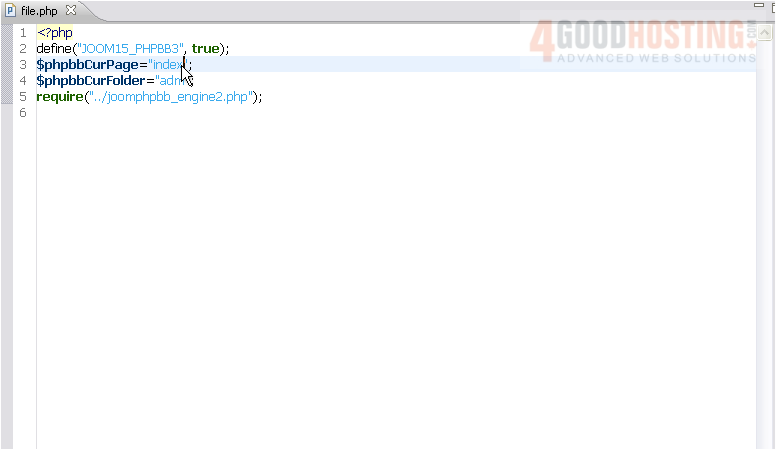
26) Now, edit this file
27) Change index to file
28) Then change the folder to download
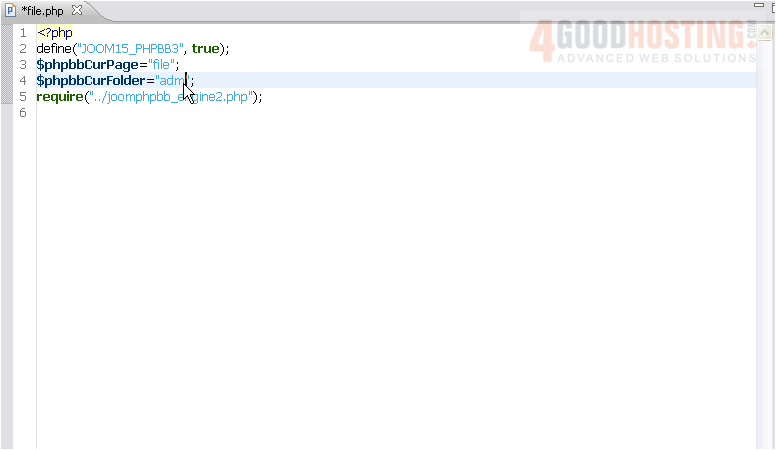
29) Press CTRL+S to save
30) Go up two directories
31) Go into the phpBB directory that was included with the bridge files
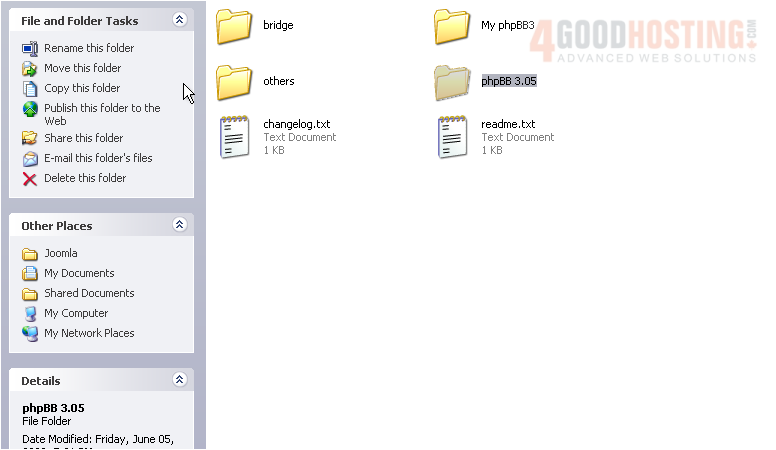
32) Enter the hacked directory
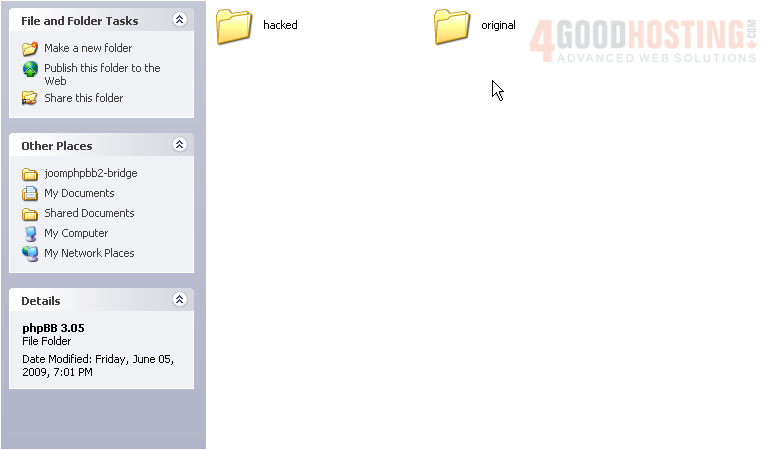
33) Then includes
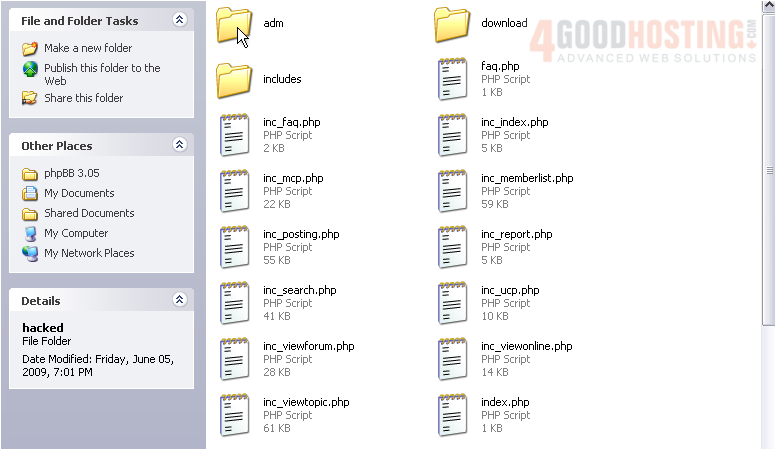
34) UTF
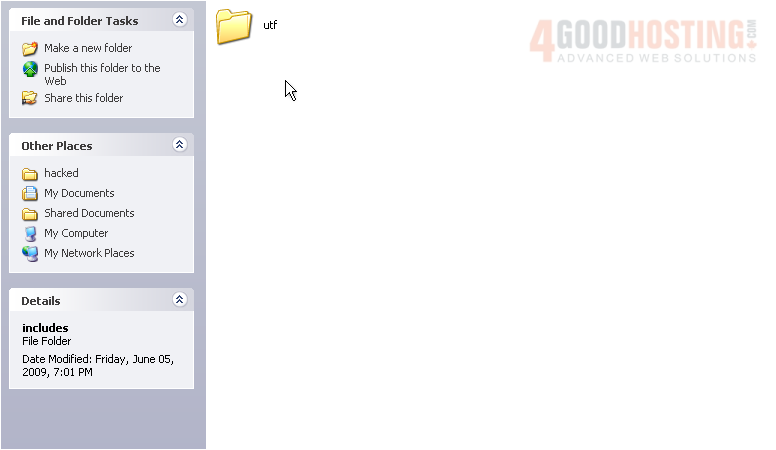
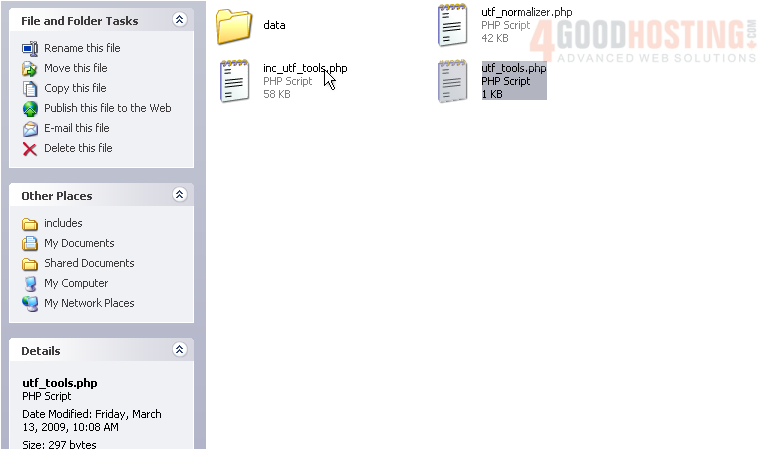
35) Copy utf_tools.php
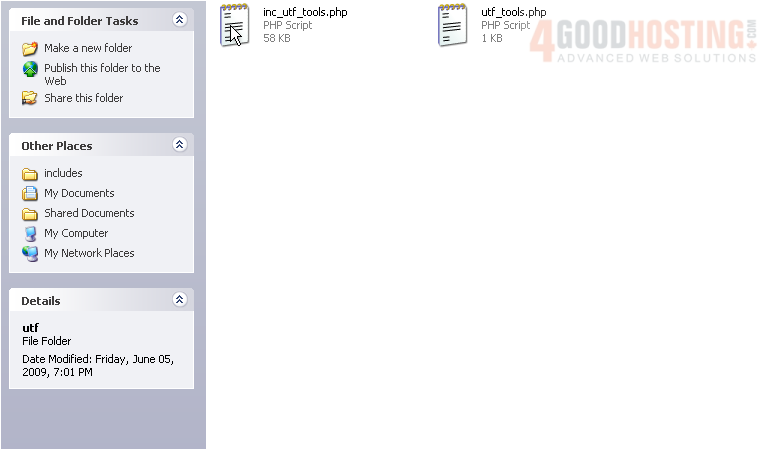
36) Return to the main directory
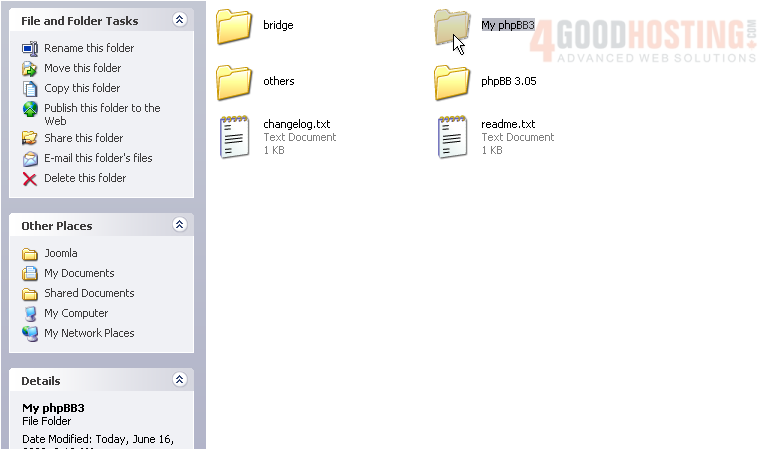
37) Enter our phpBB3 directory again
38) Go to includes
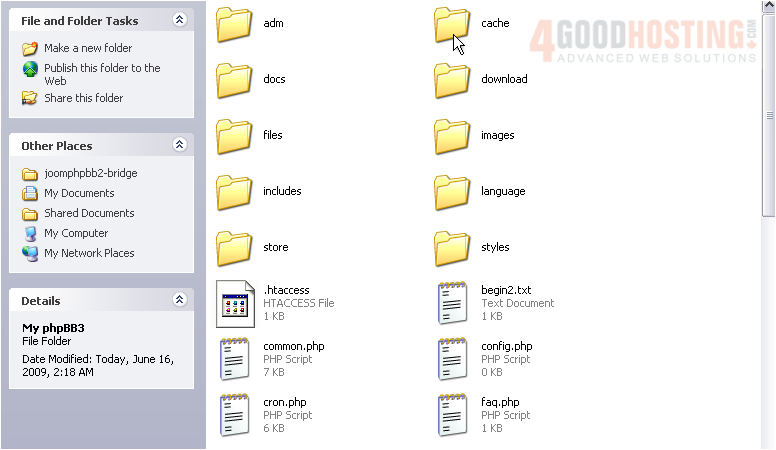
39) UTF
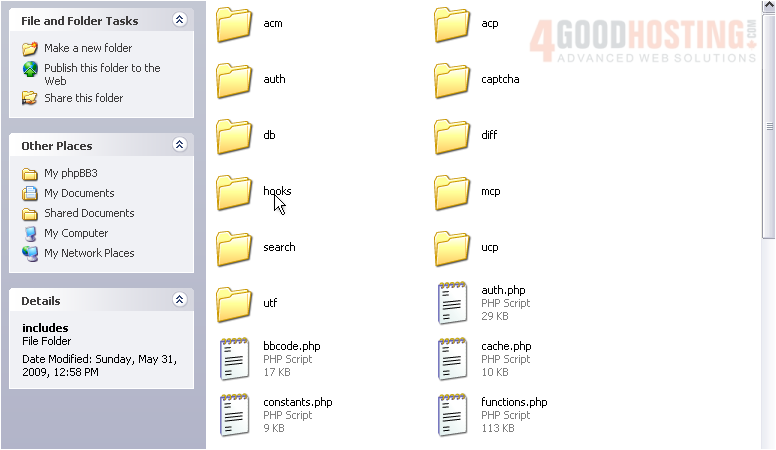
40) Rename the existing file as before
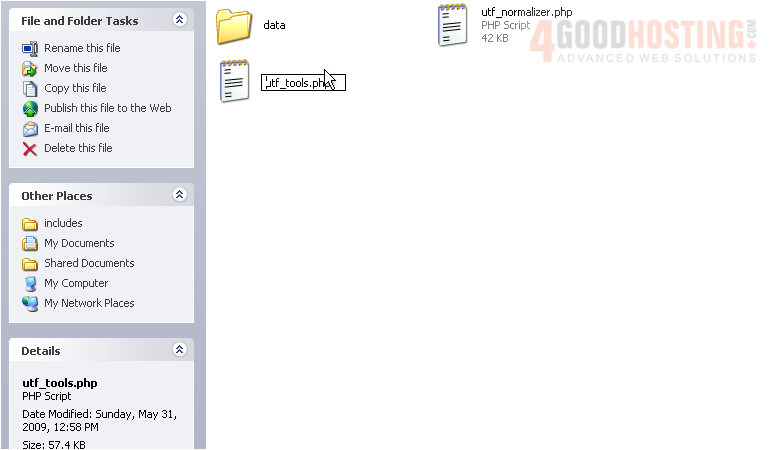
41) Paste the copied file
42) Then, open the inc_ file with the text editor
43) Add the following code to this line
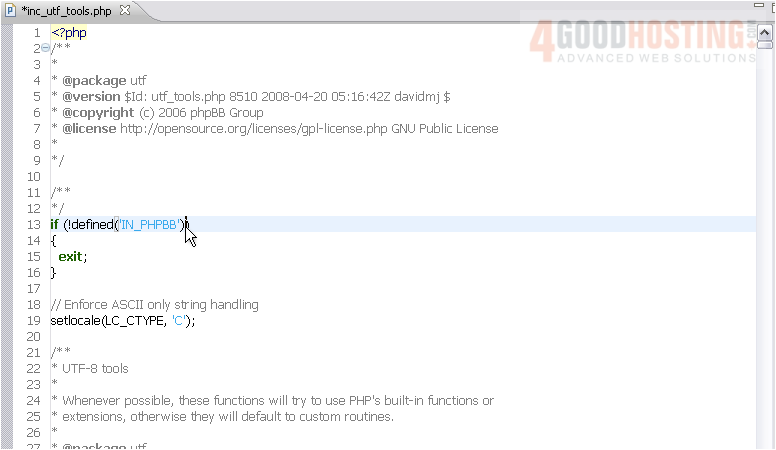
44) Save and return to the main folder
45) Now, go to bridge
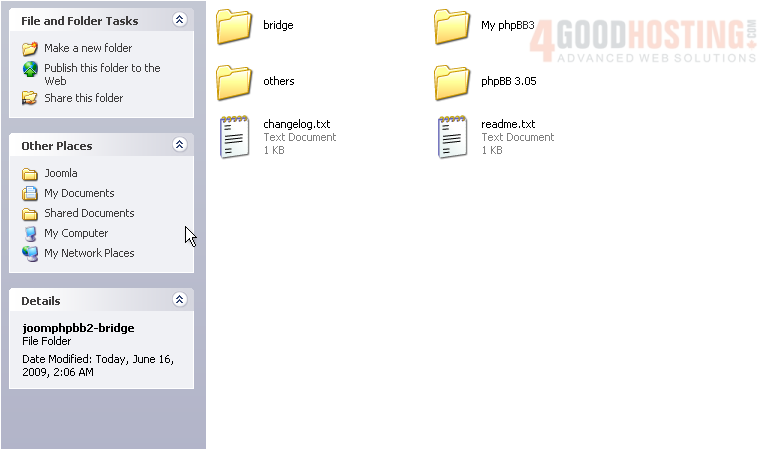
46) Open the selected file
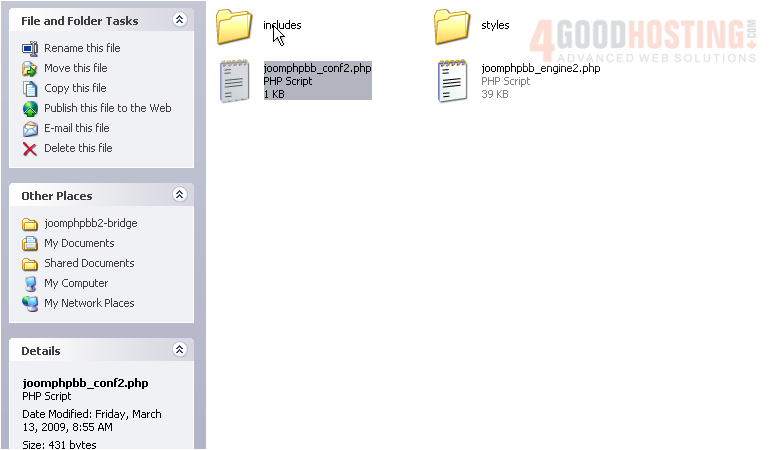
Here's where you choose which kind of integration you'll want to enable later. For now, leave this alone
47) Update the URL and relative path
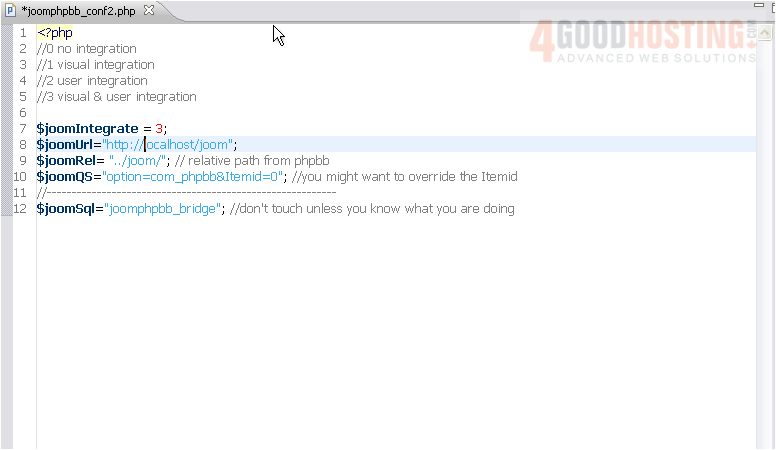
48) Save the file
49) Now, select all the files in this directory and copy them to our working phpBB3 directory
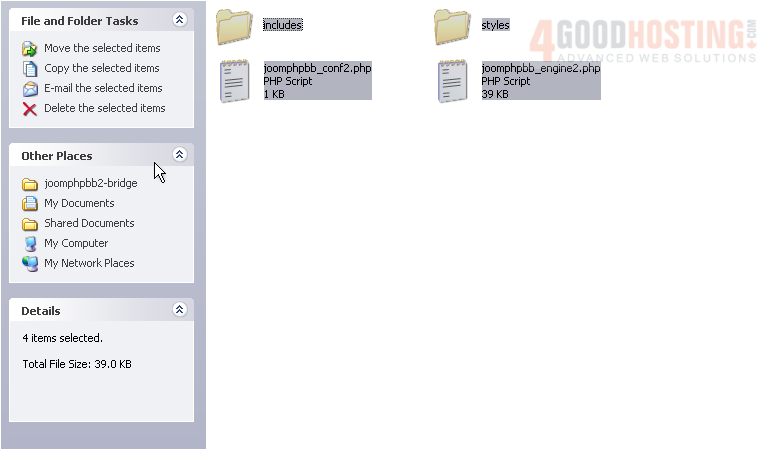
50) Paste the files
51) Overwrite all when prompted
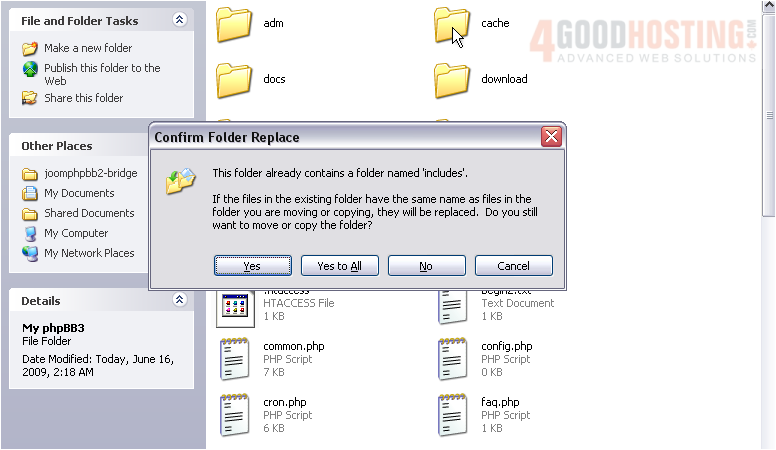
52) Press CTRL+A to select all files in this directory
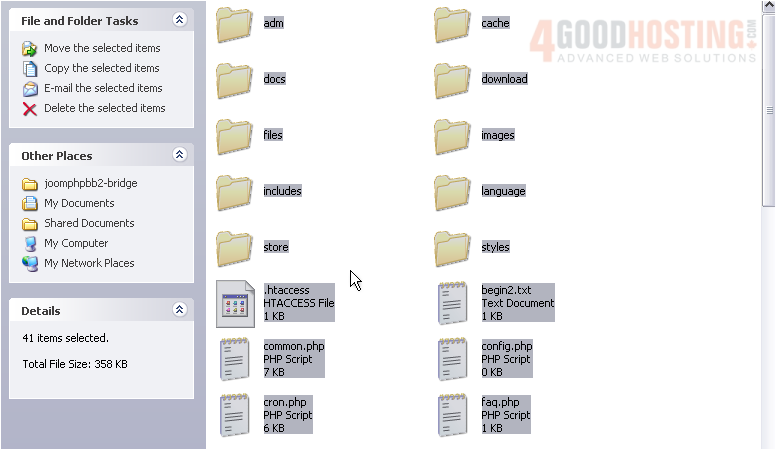
53) Now, upload everything to the phpBB3 folder on your FTP
54) Before testing the changes we made, we must first go to phpMyAdmin and execute the bridge SQL file
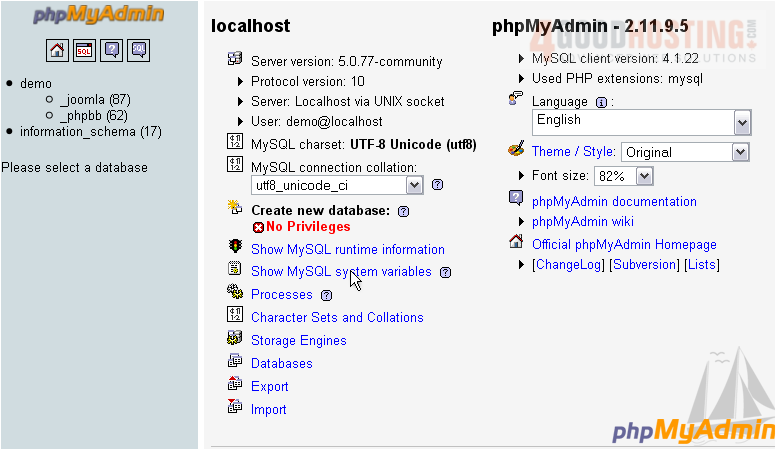
55) Choose your phpbb database
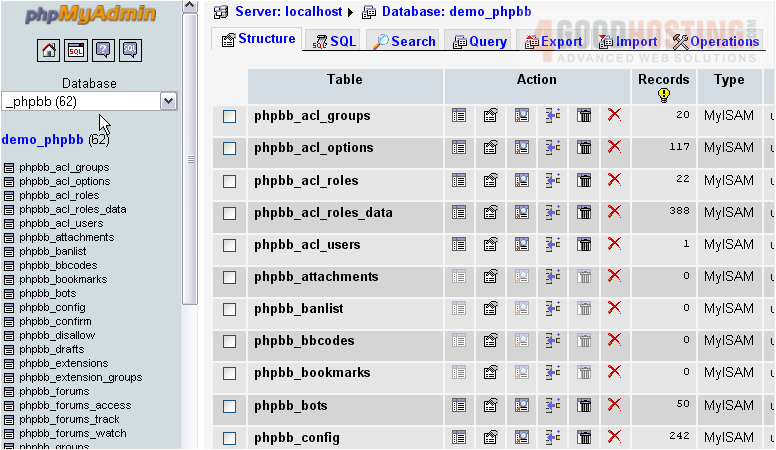
56) Go to Import
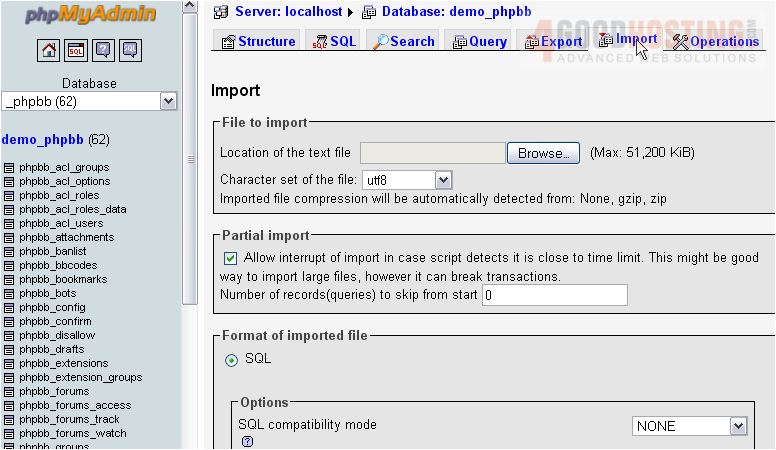
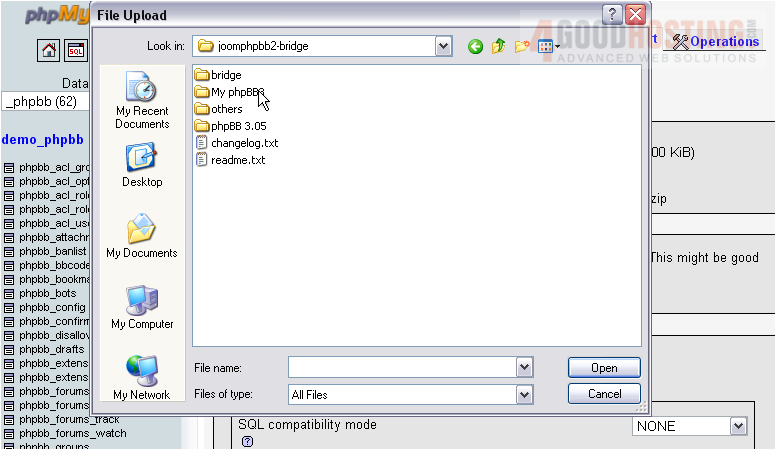
57) Browse for the SQL file
It's in the others directory
Scroll down
58) Click Go

The query was executed successfully; the table has been created
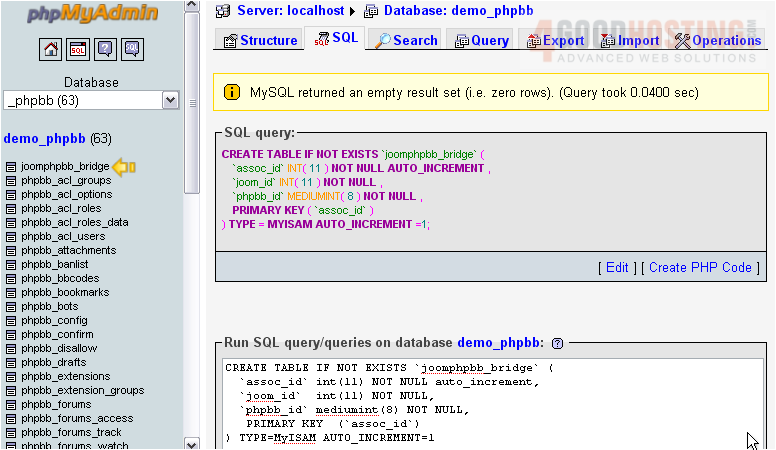
Scroll the menu frame down
If your Joomla and phpBB installations share a database, skip the following step
59) Click the link to the phpbb_users table. If yours is called something else, take note of that, since you'll have an extra step later
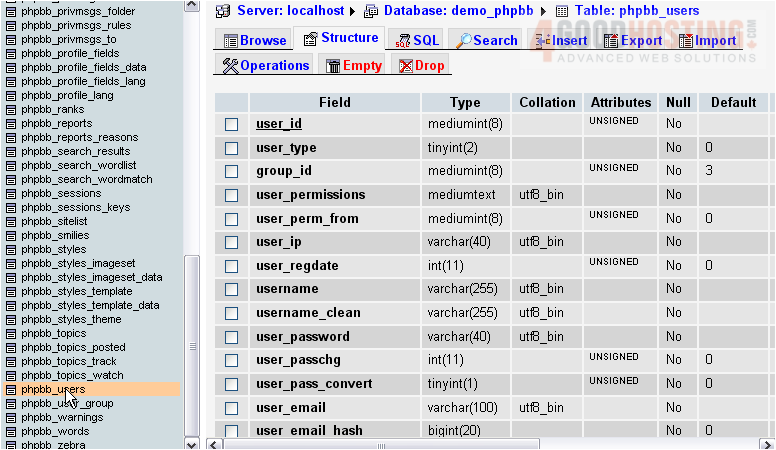
60) Click Operations
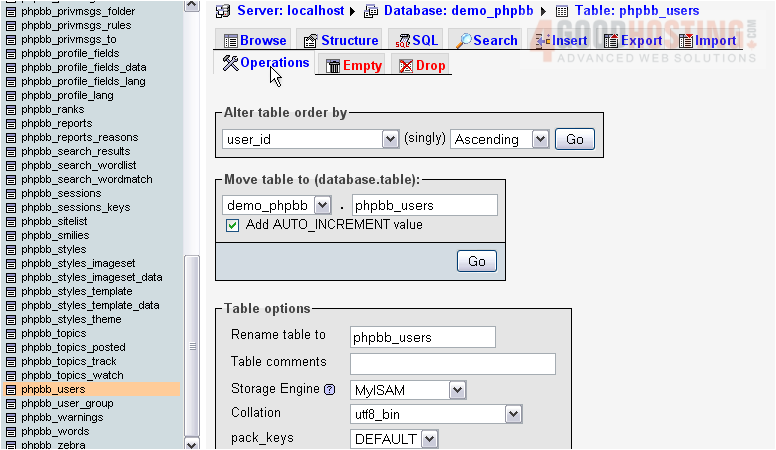
61) Scroll down until you see Copy table to
62) Specify the Joomla database
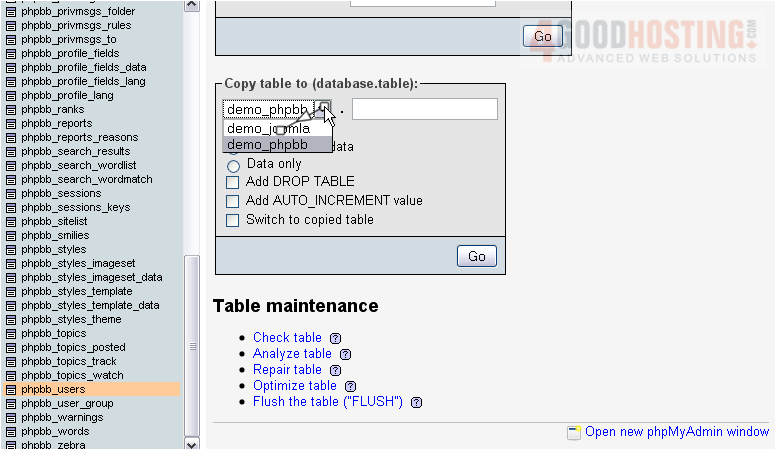
63) Type phpbb_users
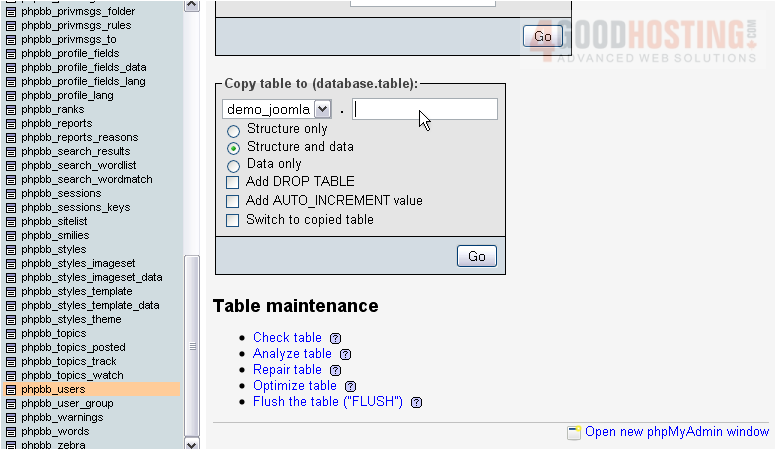
64) Switch to the copied table
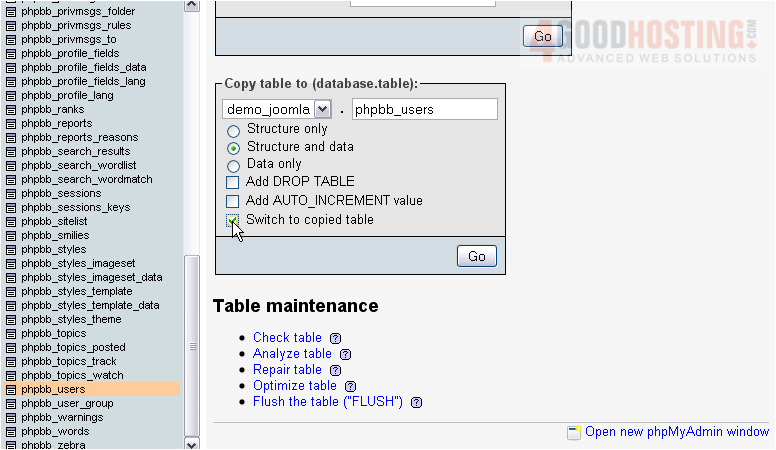
65) Click Go
66) Now, go to Joomla and install the component package contained in the others folder
For assistance with installing extensions, watch the second tutorial in this series
67) Now, choose the menu to which we'll add a phpBB link and go to its item manager

Scroll right
68) Click New
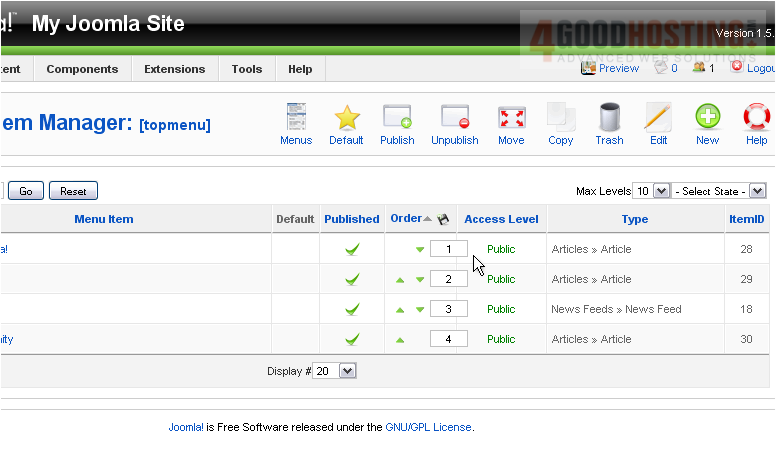
Scroll down
69) Click External Link
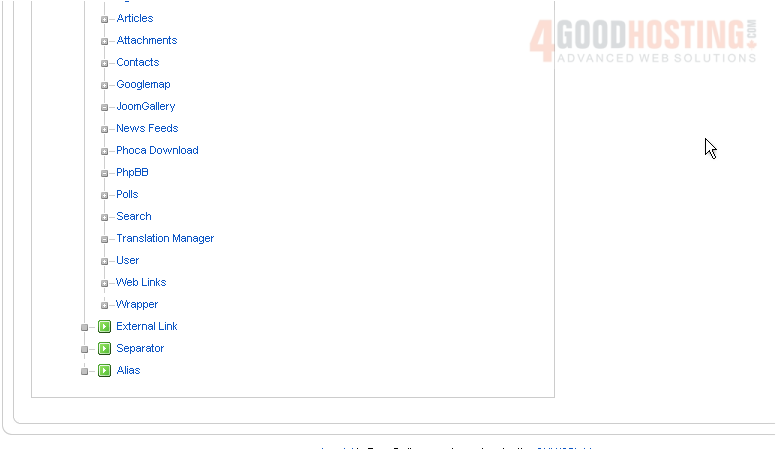
70) Enter a title
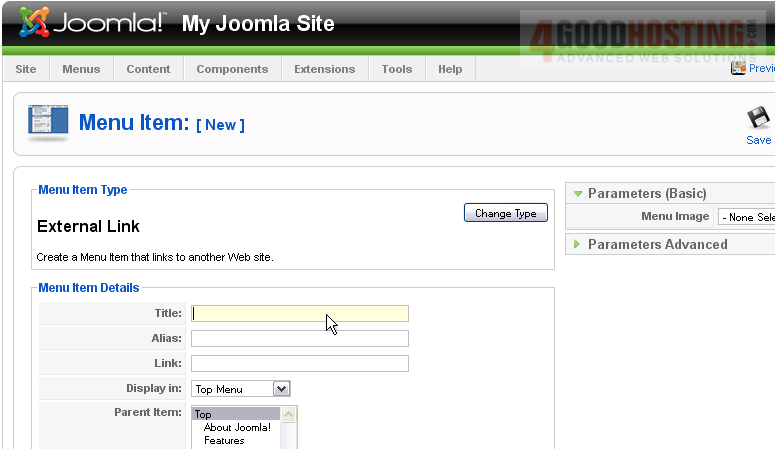
71) Enter a link to your phpBB folder
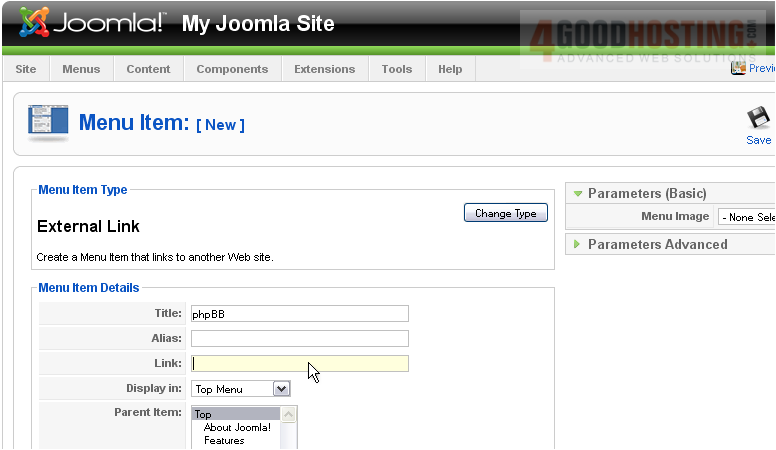
72) Click Save
Scroll down and right
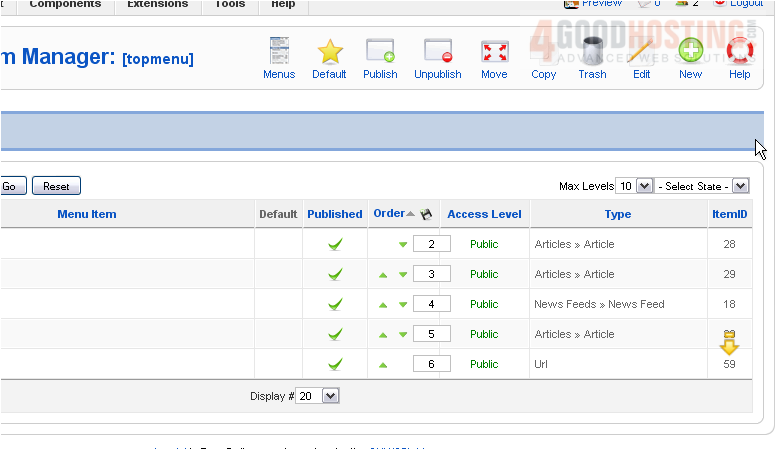
73) Make note of the ItemID for the phpBB menu link; you'll need it later
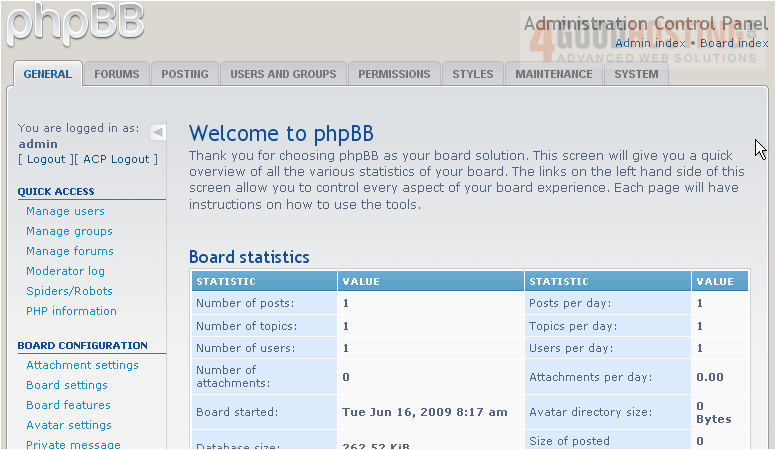
74) Now, let's verify that phpBB3 still works. Go to its Admin CP
No error messages, so everything seems to have worked so far
75) Click Styles
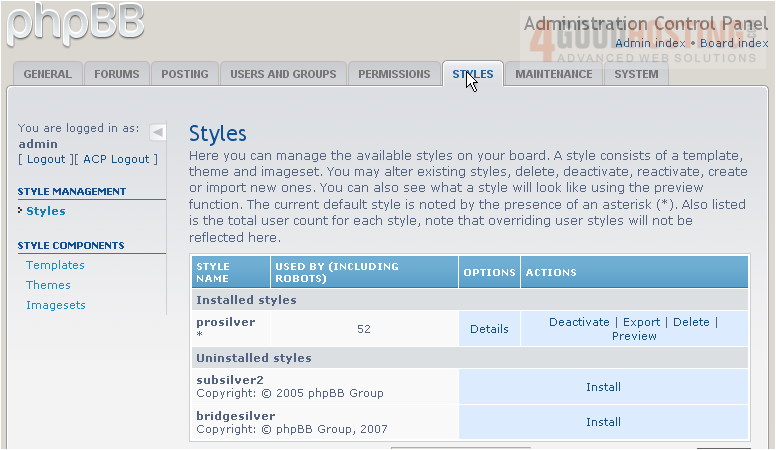
76) Next to bridgesilver, click Install
77) Make this the default
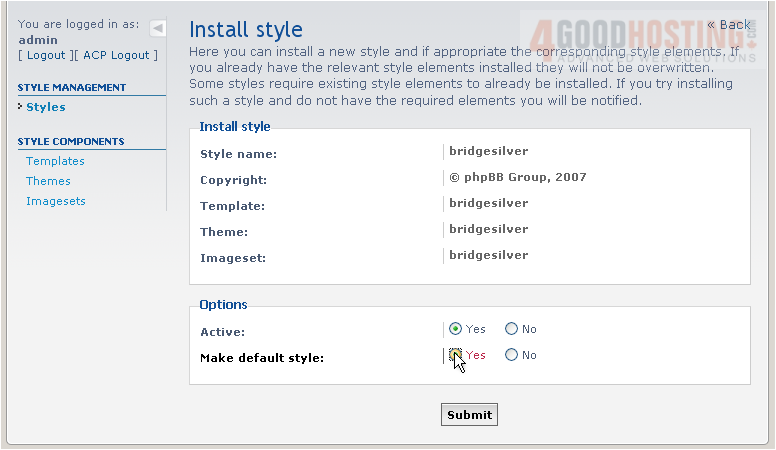
78) Click Submit
79) Go Back
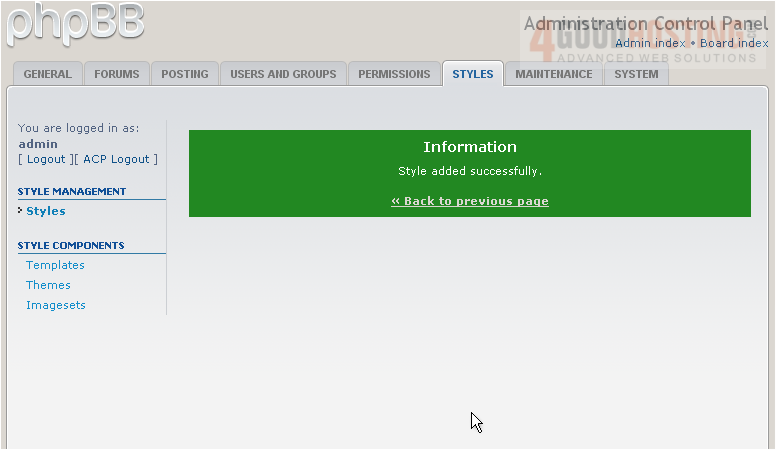
80) Click Deactivate
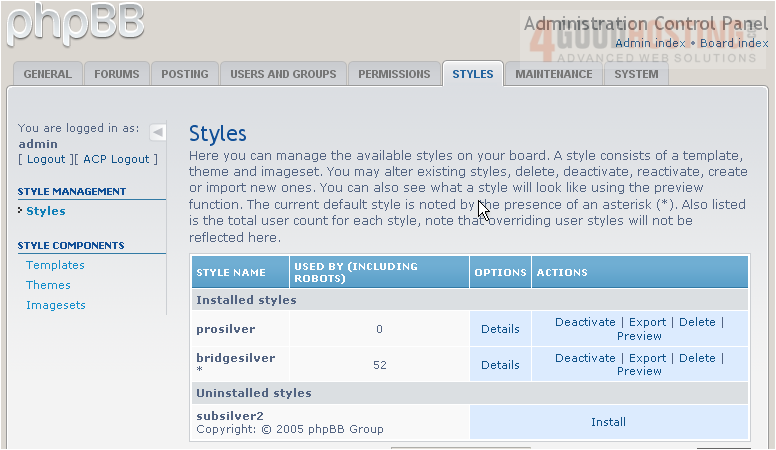
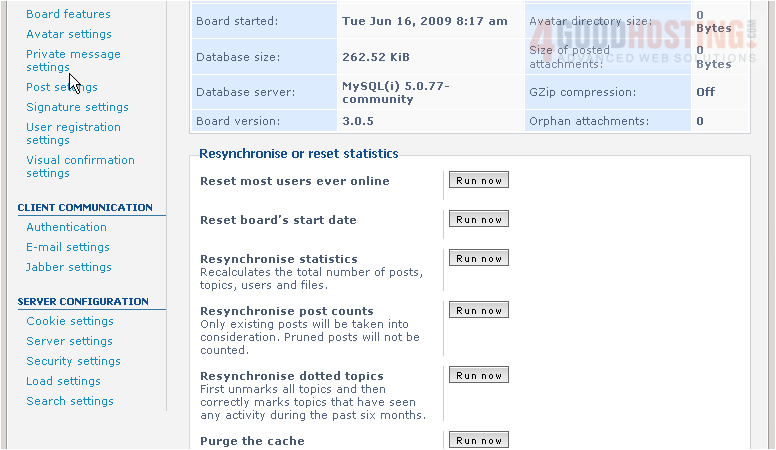
81) Now, go to General and scroll down
82) Under Client Communication, click Authentication
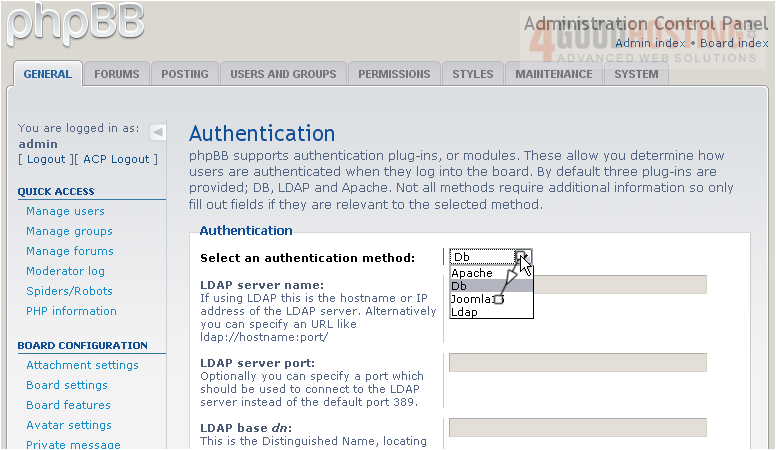
83) Select Joomla15 from the list
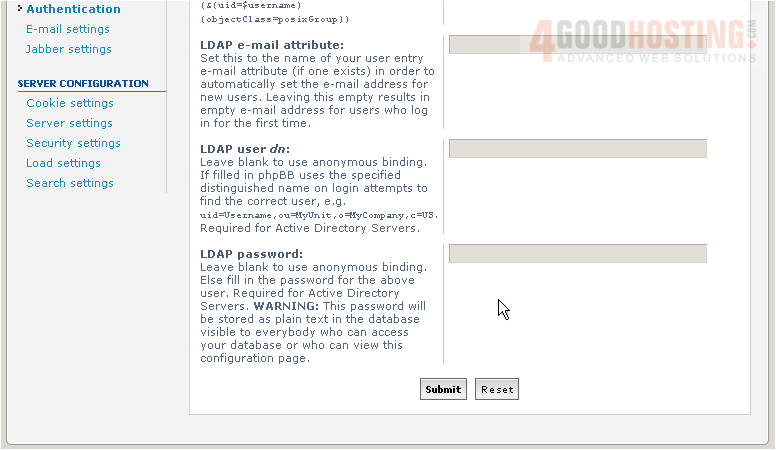
Scroll down
84) Click Submit
There's one final step before enabling the bridge
In the "others" folder, there is a PHP script called quickmerge2.php that will merge the phpBB user database with Joomla's
At the top of that file, there is a PHP variable called $myTable. If your phpBB user table is not phpbb_users, you will need to change that variable to the correct value
Then, upload the file to your root Joomla directory, run the script from your browser, and delete it from your FTP
After you run the file, you should see a page similar to this one. This phpBB3 installation had no additional users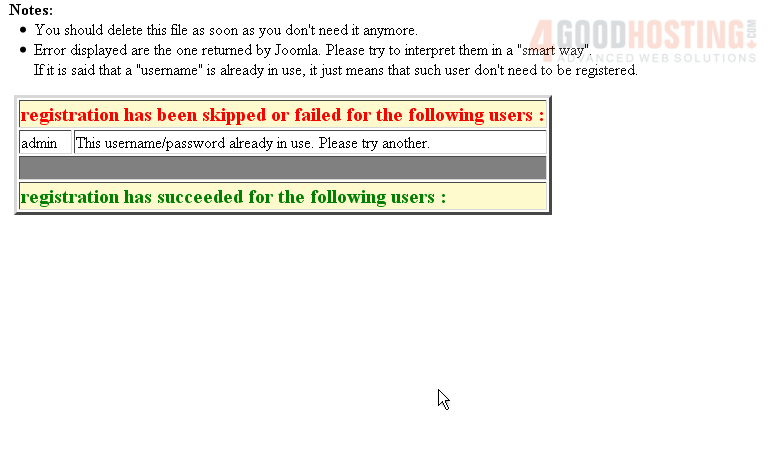
85) All that remains is to update the config file we edited earlier. Re-open joomphpbb_conf2.php
86) Change this to 3 to enable visual & user integration
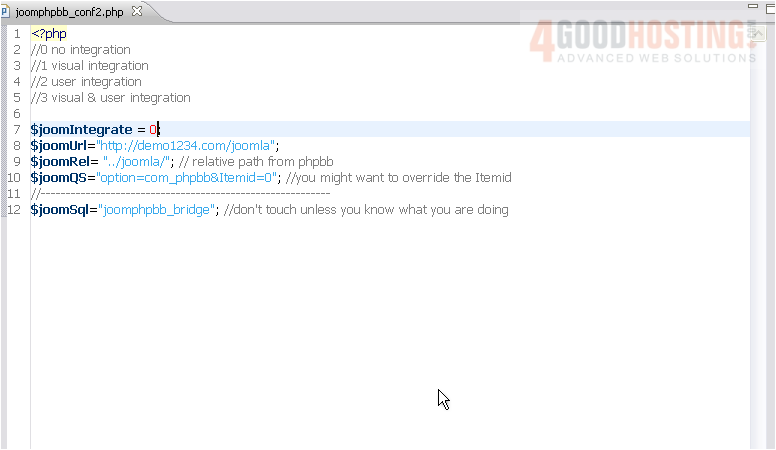
87) Enter the ItemID noted earlier

88) Save and upload this file, then go to the Joomla frontend to see if everything works
89) Click the phpBB link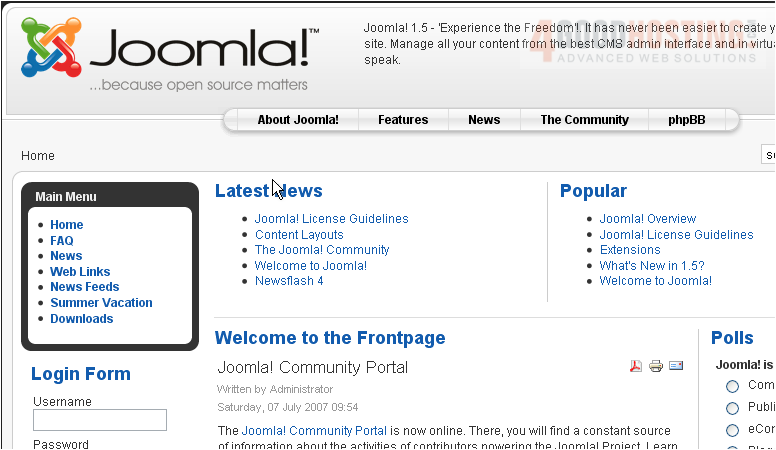
Visual integration seems to have worked! Let's see about user integration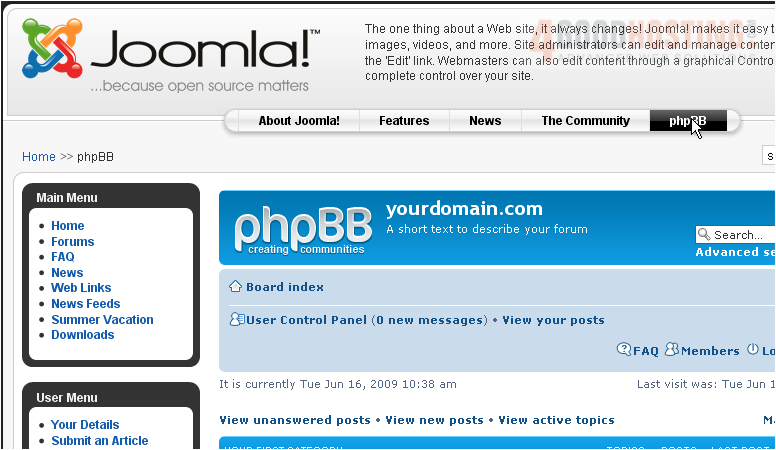
Scroll down
As you can see, the Editor account we were logged in to in Joomla was automatically transferred over to phpBB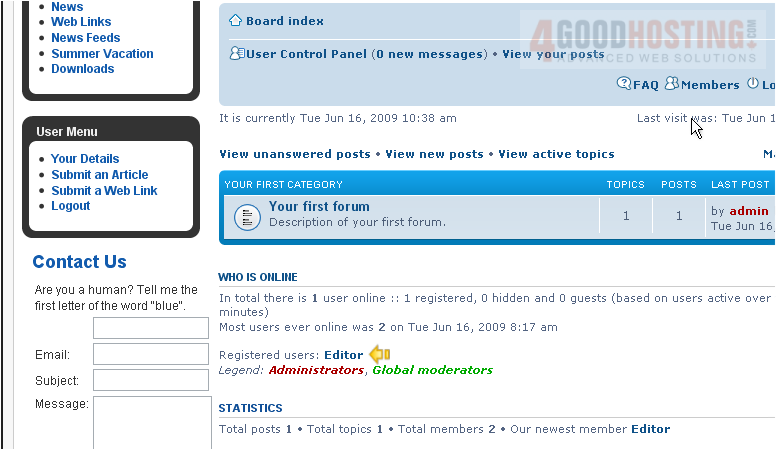
At last, the bridging was a success!
This is the end of the tutorial. You now know how to bridge phpBB3 with Joomla

 WGS AI Assistant