
This tutorial assumes you are already logged in to your Joomla admin panel
1) Click Site
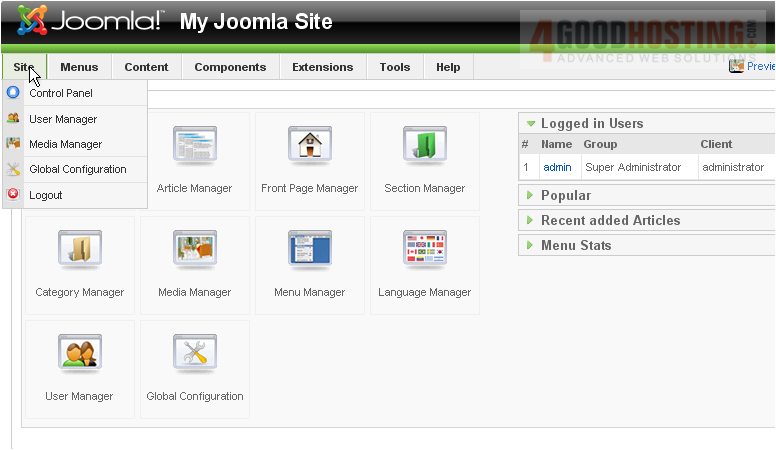
2) Then Media Manager
The Media Manager is just like a file manager except it shows only media files in your image directory
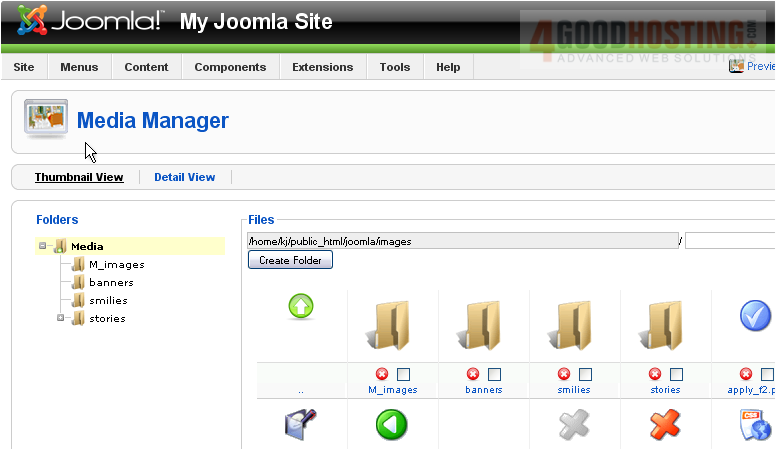
Let's create a new folder and upload an image
3) Type a new name for your folder
4) Click Create Folder

5) Now, click to open the folder we just created
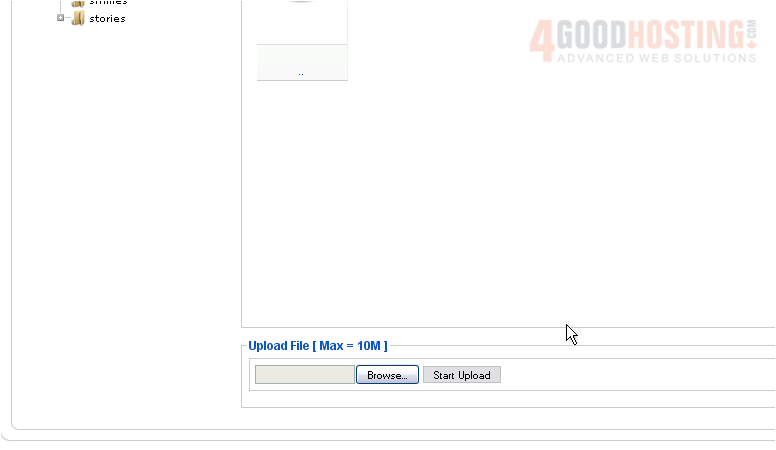
Scroll down
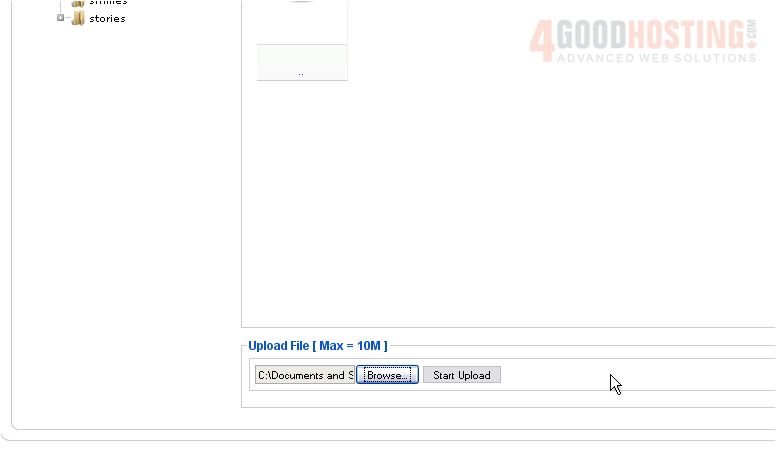
6) Click Browse
7) Select your media file and click Open
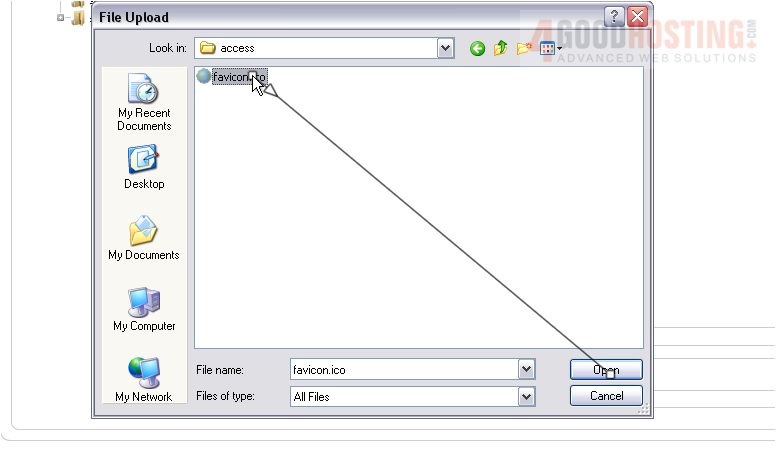
8) Now click Start Upload
Now let's see how to delete a file
We can see our uploaded file here. Note that larger files may take several minutes to finish uploading
9) Click the red X under the file
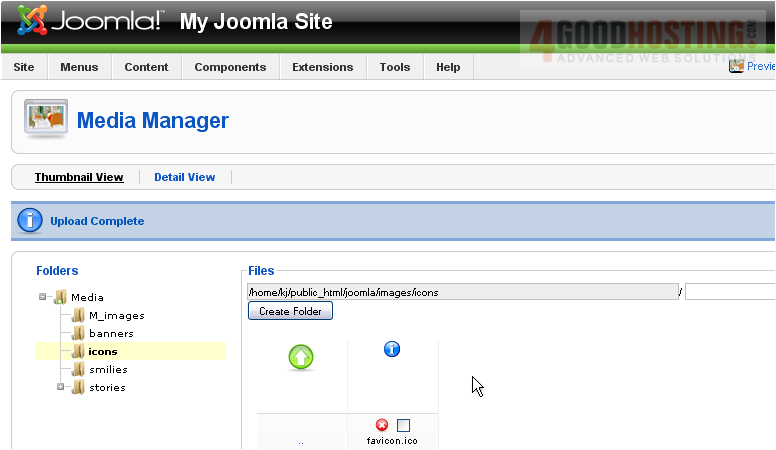
The file we uploaded has been deleted. Now let's see how to change the way items are viewed
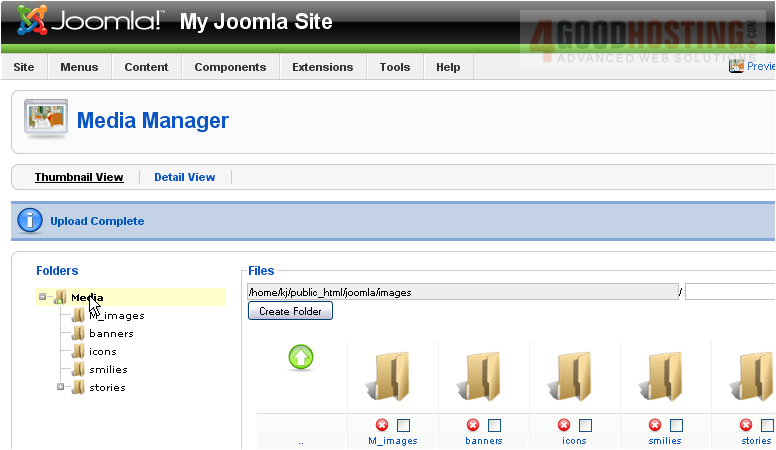
10) Go back to the main directory
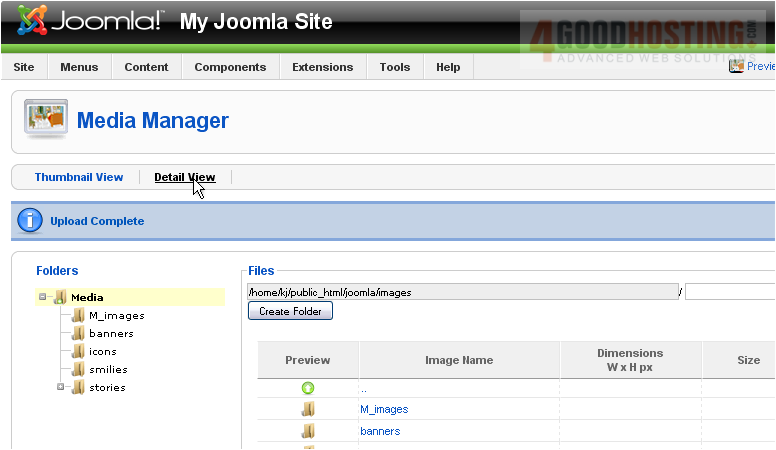
11) Select Detail View
Scroll down and right
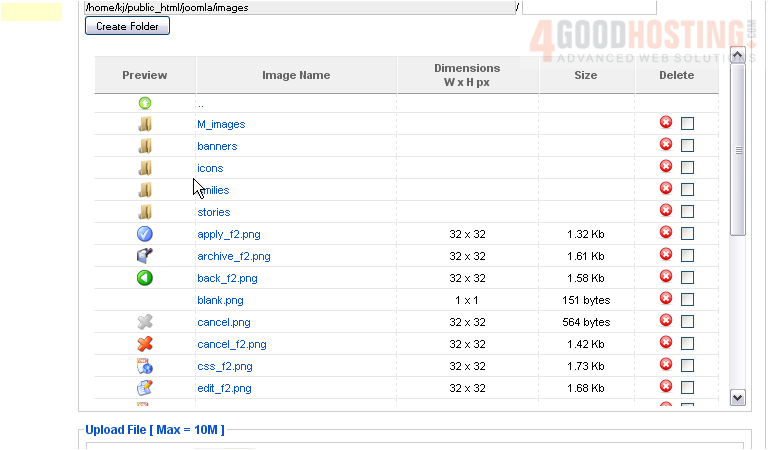
Instead of just thumbnails, the files are now shown with their dimensions and size
That's it! You now know how to use the Media Manager in Joomla

 WGS AI Assistant